Team management
Manage your organisation's members from the User Management page.
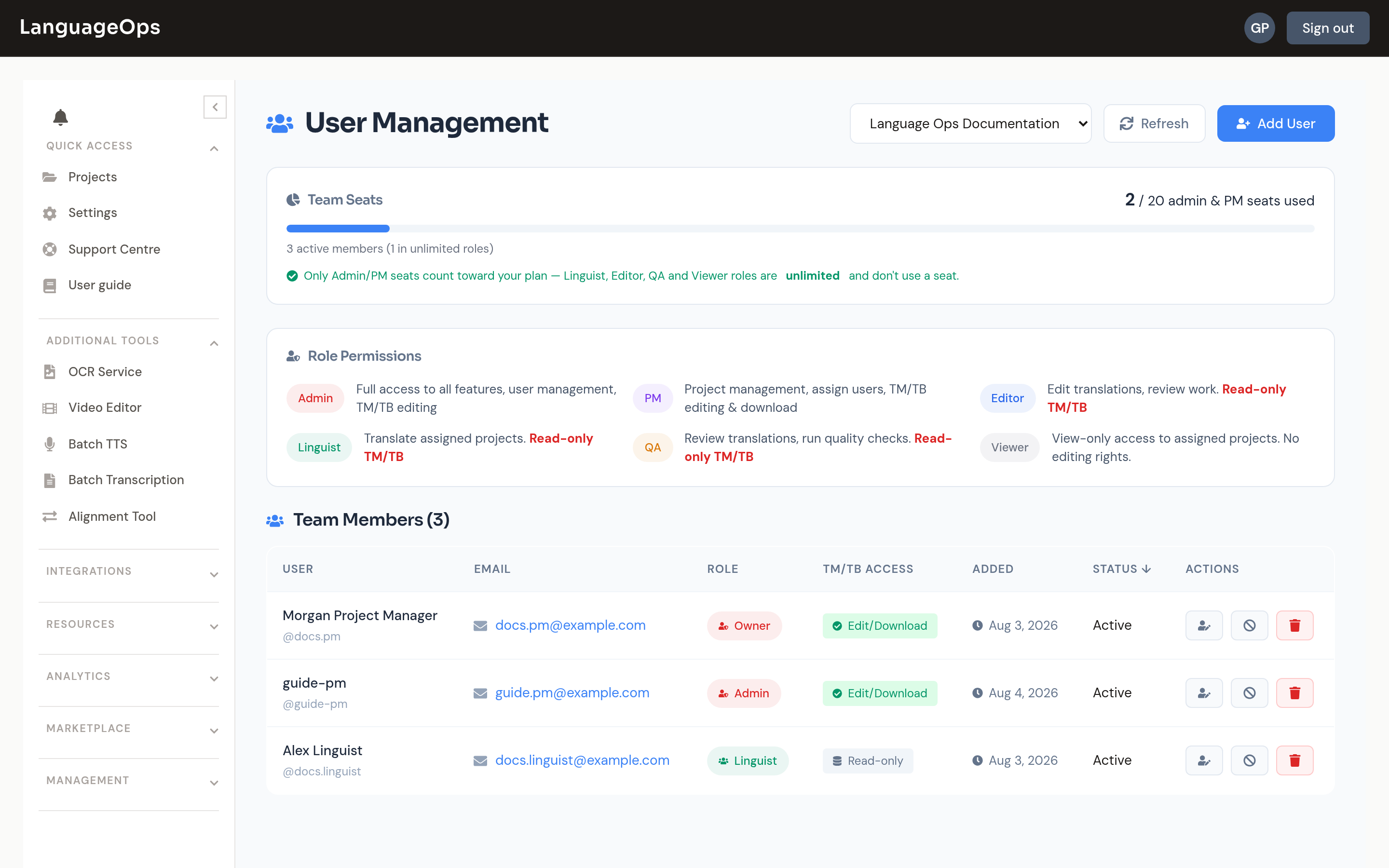
Inviting members
Add a member with their email, first/last name, and a role. They receive an invitation email where they can set a password or sign in with Microsoft SSO. Once they accept, they appear as an active member.
While an invite is pending, it occupies a counted seat if the role is Admin or Project Manager, and shows in the pending invitations list with who invited them. If the email went missing, use resend invite rather than creating a duplicate.
Roles
| Role | Can do | TM/TB access |
|---|---|---|
| Admin | Full access to all features, including team management | Full |
| Project Manager | Manage projects end to end | Full |
| Editor | Edit translations and review assigned work | Read-only by default; project term editing can be allowed |
| Linguist | Translate assigned projects | Read-only by default; project term editing can be allowed |
| QA | Review assigned translations and quality findings | Read-only by default; project term editing can be allowed |
| Viewer | View-only access to assigned projects, no editing | None |
The owner role is held by the organisation creator and isn't assignable; owners can do everything admins can, plus manage the subscription.
Roles can be changed at any time from the member list. This is useful when a linguist moves into revision work or a PM needs admin rights.
Project managers can also grant assigned linguists access to specific project tools without changing their organisation role. Auto-translate, QA, LQA, attached-termbase editing, spelling-dictionary editing, and protected-tag editing are controlled independently per project.
Seats
Your organisation's counted seat cap is determined by the owner's subscription tier. The page shows current members, pending invites, and remaining counted seats. Admin and Project Manager roles consume counted seats, including pending invitations. Linguist, Editor, and QA roles are unlimited on paid plans.
When the counted seat limit is reached, adding another admin or PM is blocked until the owner upgrades the plan or you remove an existing counted member.
If the counted seat cap looks stuck at 1, the organisation owner may still be on the free tier. Counted seats follow the owner's plan, not an admin's plan.
Removing members
Removing an admin or PM frees their counted seat immediately. Removing any member leaves their past work, including edits, comments, and confirmations, attributed to them in project history.