Your first project: upload to export in five steps
This walkthrough takes one file through the PM-managed pipeline. If you have received an account to work on an assigned job, start with Assigned work instead.
1. Create a project
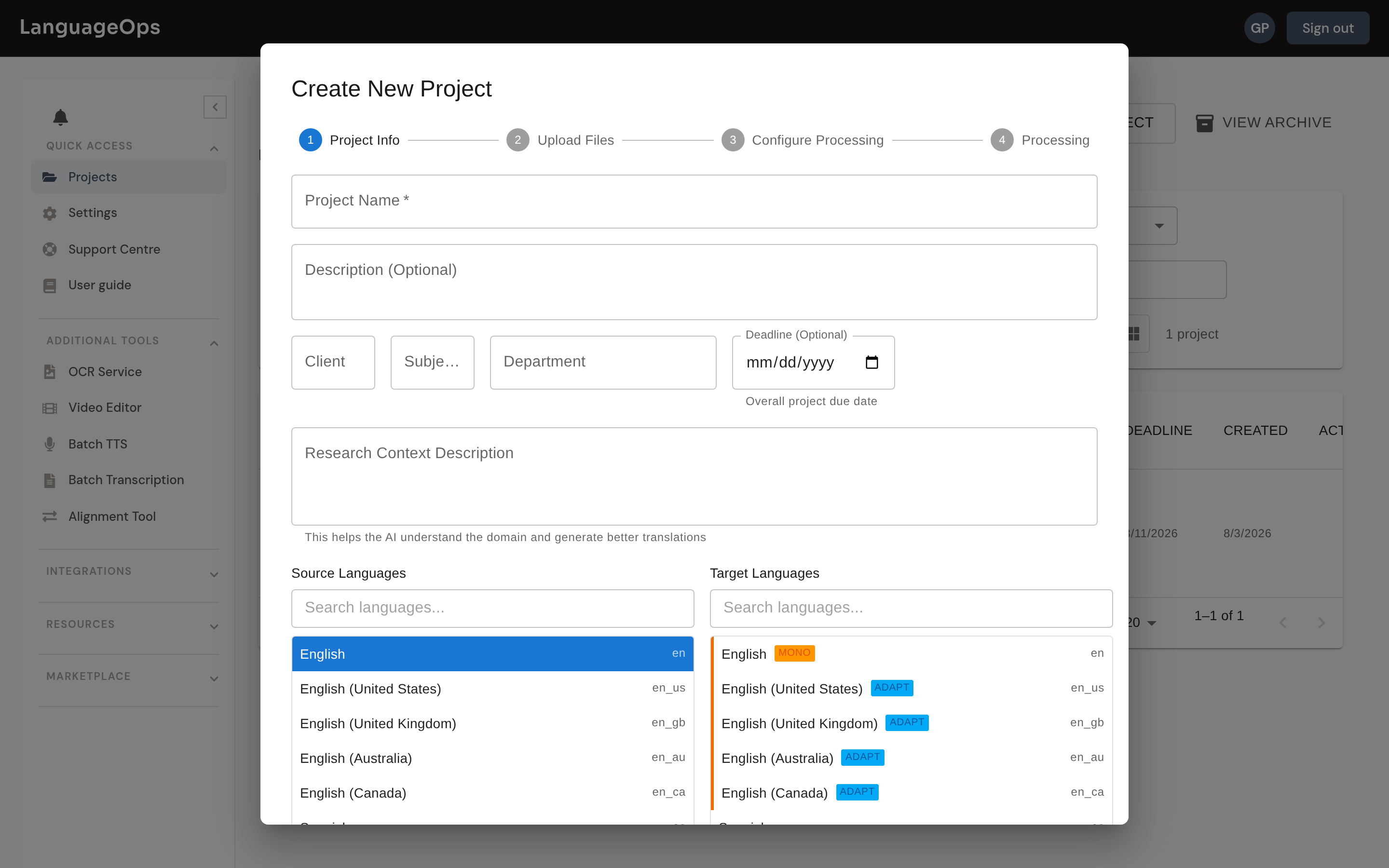
From Projects, start a new project. Creation is a four-step wizard: Project Info > Upload Files > Configure Processing > Processing.
- Project Info: name the project, choose languages, and select Manual, Auto Translation Only, or Automatic End-to-End workflow.
- Upload Files: add source files.
- Configure Processing: confirm standard conversion, OCR, or available format-specific handling.
- Processing: extraction runs in the background.
If a file is very large, the platform analyses it first and offers splitting, filtering, or selective extraction. See Large files.
2. Analyse (optional but wise)
Run File Analysis for match categories, repetitions, new content, and effort information used in scoping.
3. Translate
Open Pre-translate, or let an automated workflow start it. Choose AI or TM-only mode, existing-target handling, TM/TB and project context, and whether qualifying memory matches should be locked or confirmed. The primary model comes from LLM settings.
Translation runs in the background; a progress banner shows live status, and you'll get a notification when it finishes.
4. Review in the editor
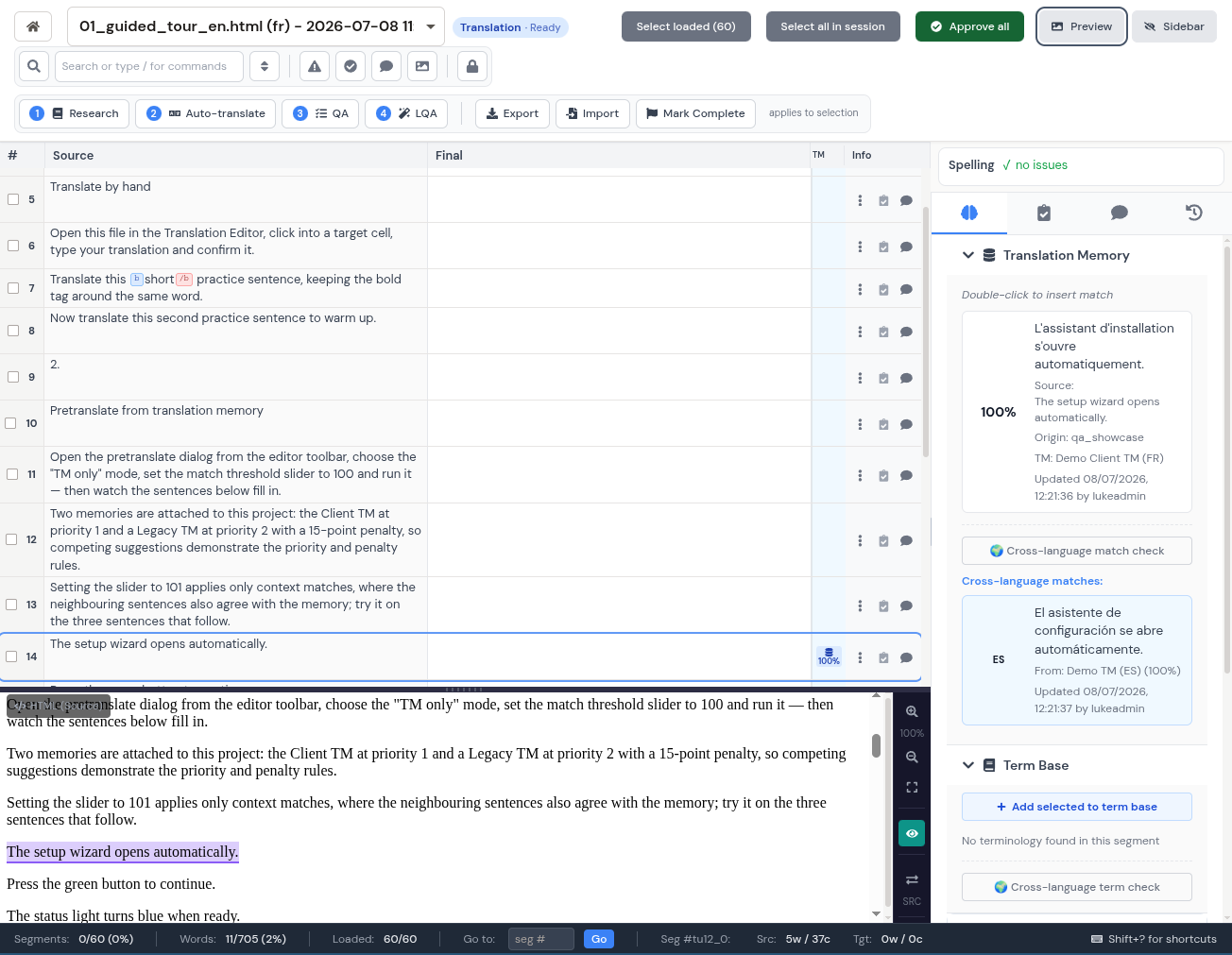
Assign the active stage, then open the file in the Editor. Edit and confirm segments, resolve comments, review QA/LQA findings, and use the filters to work in focused passes. PMs decide which AI, QA, LQA, termbase, dictionary, and protected-tag tools assigned linguists may use.
5. Complete and export
When the pass is ready, choose Mark Complete. Project guardrails can warn or block for empty or unconfirmed segments, unresolved comments, open major or critical LQA findings, or required QA. Completion confirms the stage, advances the workflow, and makes the session read-only.
Use Export for the completed original-format file, XLIFF, QA issues, LQA issues, or edit-distance data. A translated .docx is rebuilt as .docx; supported SDL packages can also be reconstructed.
That's the whole loop. Next steps by role:
- PMs: Projects and files
- Linguists: Assigned work
- Admins: Team management