Logging in and your account
Receiving an account
An organisation admin normally creates your account by inviting you to their LanguageOps Studio workspace. The invitation email tells you which organisation you are joining and provides a secure link to activate your account.
Following the link lets you either:
- Set a password for a standard LanguageOps account.
- Sign in with Microsoft if your organisation has Microsoft single sign-on enabled.
Your organisation and role are set by the person who invited you. You do not need to create a separate workspace.
You can also create a free Marketplace account from Try the free demo. Choose Linguist, Project Manager, Agency, or any combination, then verify your email before opening the shared guided project. The demo uses preloaded sample content: edits, pretranslation, QA, LQA, and delivery actions are simulations and do not consume AI credits.
Completing the core walkthrough, a role module, and its 80% knowledge check earns a versioned LanguageOps Certified credential for that role. This demonstrates product familiarity; it does not replace the separate identity/profile approval needed for a public Marketplace listing.
If you expected an invitation but did not receive one, check your spam folder and ask the organisation admin to resend it. Invitation links are intended for the named recipient and should not be forwarded.
Sign in
Go to studio.languageops.com and sign in with your email and password, or choose Microsoft when it is available for your organisation.
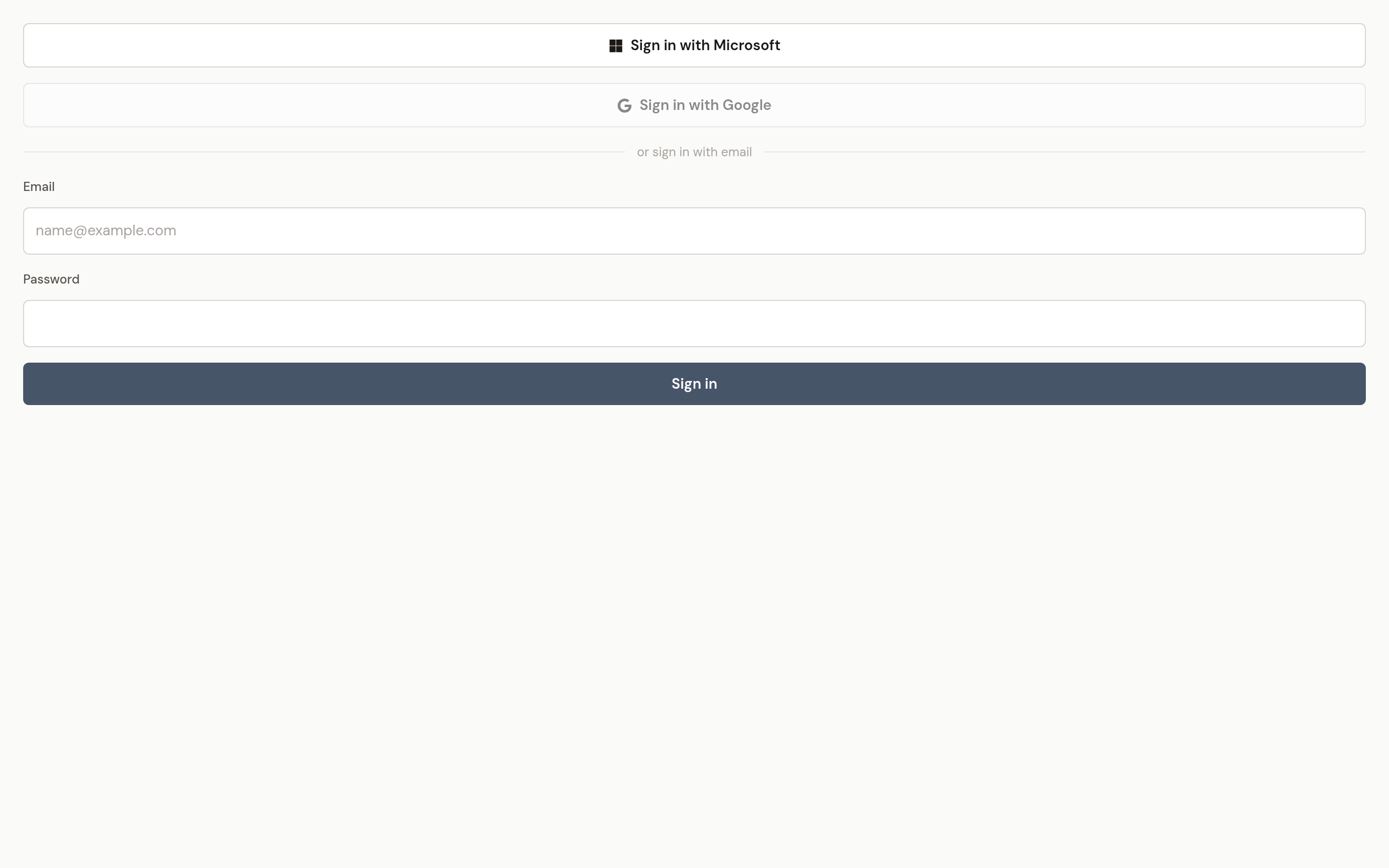
After signing in, you see only the projects and tools available to your role. Linguists, editors, QA reviewers, and viewers may also be restricted to files assigned to them in the current workflow stage.
Roles at a glance
- Owner: controls the organisation and subscription.
- Admin: manages the team, settings, usage, and costs.
- Project Manager: manages projects, workflows, assignments, translation resources, and delivery.
- Editor: edits and reviews assigned translations.
- Linguist: translates assigned work.
- QA: reviews assigned work and uses the quality tools allowed for the project.
- Viewer: has read-only access to assigned projects.
Your organisation role and your assignment are separate. A Linguist role allows translation work, but a project or workflow-stage assignment determines which jobs you can open.
Project-controlled tools
Project managers can independently decide whether assigned linguists may use:
- Auto-translate and AI research
- Rule-based QA
- LQA
- Termbase editing
- Project spelling-dictionary editing
- Protected inline-tag editing
If a control described in this guide is unavailable or greyed out, it may be disabled for that project. Ask the project manager before assuming that your account is broken.
Account settings
From Settings you can manage:
- Profile: your name and account details.
- LLM Model Settings: translation-provider preferences available to your role.
- Notifications: email and in-app notifications for assignments, job completion, comments, and usage alerts.
See Assigned work for what happens after a project manager assigns a file or stage to you.