Finding and completing assigned work
How work reaches you
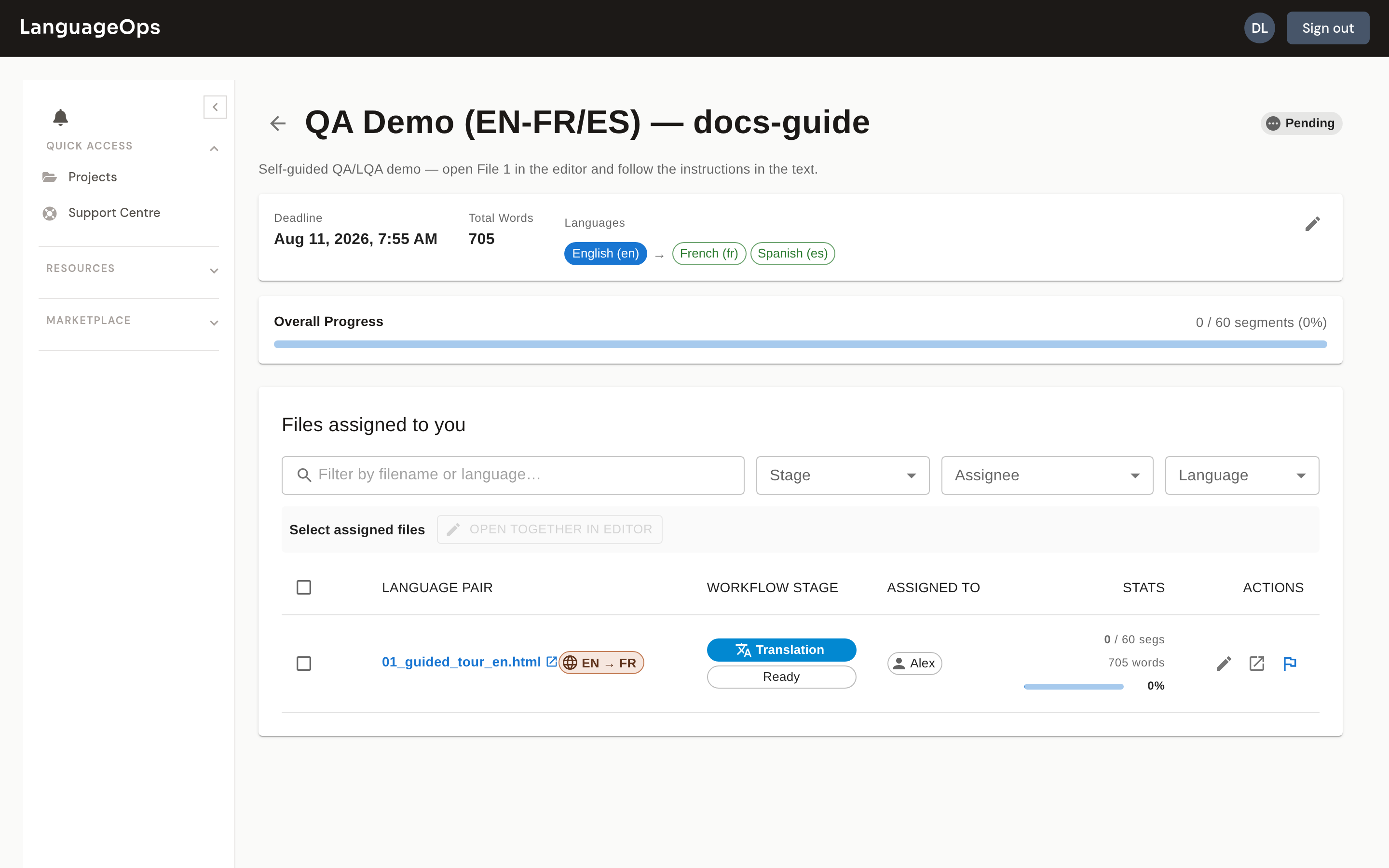
A project manager assigns a file's active workflow stage to you. Assignments can be different for Translation, Revision, and Proofreading, so the person translating a file may not be the person who reviews it.
When assignment notifications are enabled, you receive an in-app notification and may also receive an email. The notification links to the project or editor. You can also find the project from Projects after signing in.
Job offers from agencies
If an agency works with you through the LanguageOps vendor portal, it may offer you a job rather than assign it. Offers appear on the portal's Offers tab with the project, languages, due date, your rate and the time you have to answer, and you get a notification (and a reminder halfway through).
- Accept job: the job is yours and moves to your Jobs tab.
- Decline: the offer may move on to another vendor.
Some offers go to several vendors at once, and the first to accept gets the job. If someone else accepted first, or the time ran out, the offer shows as withdrawn or expired.
What you can open
You can open files assigned to you at their current stage. Project managers and workflow managers can see every file in the project, while restricted users see only their assigned work.
From the project page you can:
- Open one assigned file in the editor.
- Open the file in a new browser tab when you need to compare jobs.
- Select compatible, same-language assigned files and open them as one joined editor session.
- Check the project deadline and the active workflow-stage deadline before starting.
If an expected file is missing, first confirm that its current stage is assigned to you. Being a member of the organisation does not automatically grant access to every project file.
Tools vary by project
Your PM may allow or withhold individual tools for the project. If enabled, you can use auto-translate, QA, LQA, termbase editing, the project spelling dictionary, or protected-tag editing. Disabled actions are hidden or greyed out, while normal editing and review remain available.
Project managers and workflow managers retain management access regardless of the linguist switches.
Handing work back
When your pass is ready, choose Actions > Mark Complete in the editor. LanguageOps checks the current file or joined files before completing the stage.
Depending on the project's delivery settings, unconfirmed or empty segments, unresolved comments, open major or critical LQA findings, or a required QA run can produce a warning or block completion. Resolve the listed items, or ask the PM when a manager decision is required.
Successful completion confirms the active workflow stage and advances the file to the next configured stage. With auto-advance enabled, the next stage starts and its assignee can be notified. The completed session becomes read-only, but comments, issue review, navigation, and export remain available. If more edits are needed, use Actions > Complete ✓ to mark the session incomplete again, or ask the PM if you do not have the required access.
See Completing and exporting for completion rules and delivery formats.