Editing segments
The basic editing loop
Segments move through statuses that match the project's workflow stages:
Draft → Translated → Reviewed → Approved
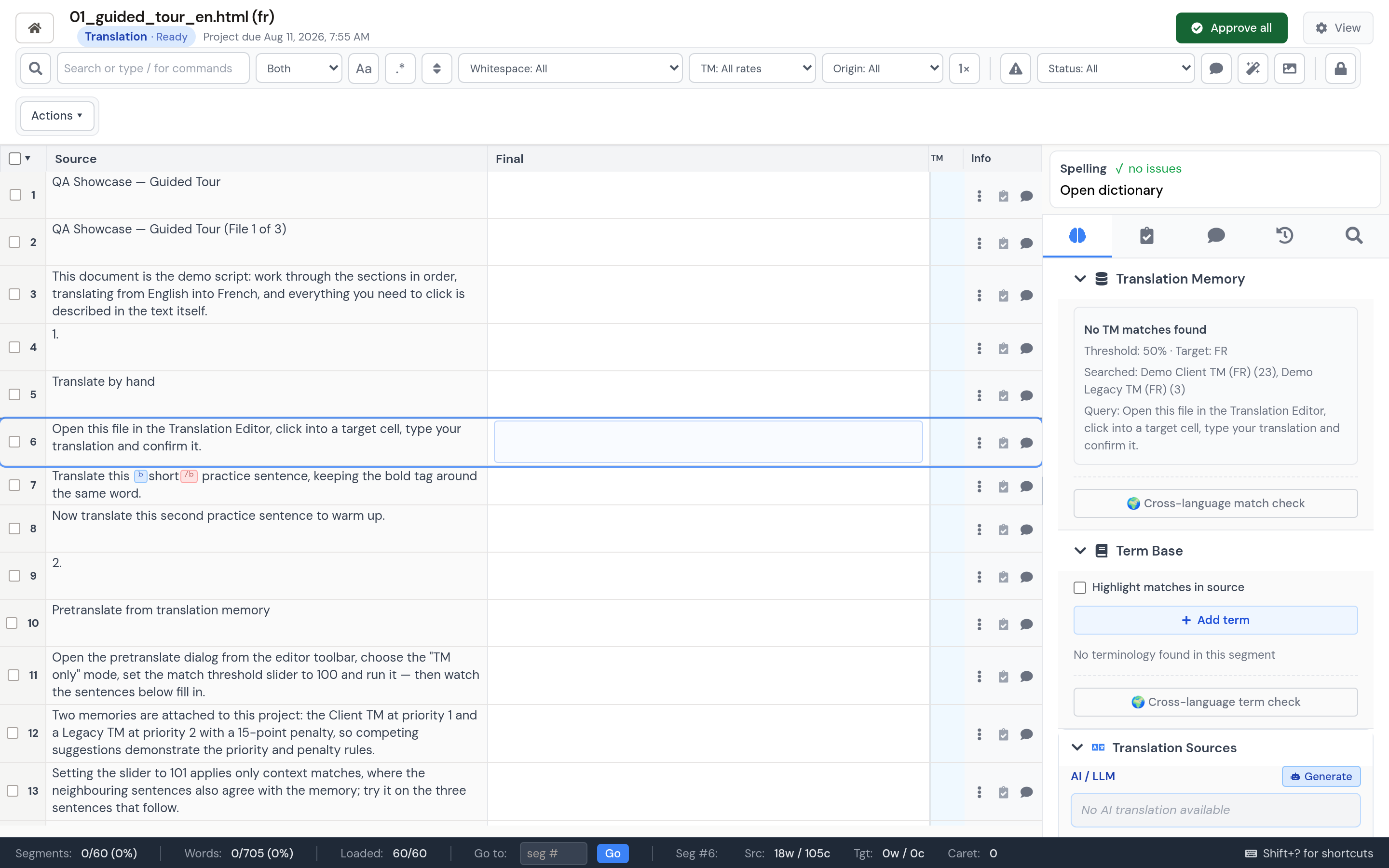
- Select a segment and edit its target.
- Save with Ctrl+S, or leave the cell to use the normal save behavior.
- Confirm it with Ctrl+Enter when the translation is ready for the current pass.
Confirmation is recorded in history. You can immediately undo a saved manual edit or confirmation with Ctrl/Cmd+Z. Ctrl+Shift+Enter unconfirms the current segment when you are not editing text.
Approved segments are excluded from normal retranslation. If a propagation action is explicitly allowed to change approved repetitions, affected rows return to Reviewed so they can be checked again.
Selecting and working in batches
Use the row-number header to select loaded rows or every segment matching the current session filter. You can also Ctrl/Cmd-click individual rows or Shift-click a range.
The Actions menu provides selection-aware commands such as:
- Translate selected segments, if your PM has enabled auto-translate.
- Confirm selected segments.
- Copy source text to selected targets.
- Clear selected targets.
- Propagate a translation to matching repetitions, with a preview of changed and skipped rows.
Large copy or clear operations continue as background jobs. Locked rows, completed files, and rows that no longer belong to the selected scope are skipped safely.
Search, filter, and go to segment
The main search box supports Both, Source, and Target scopes. Ordinary text search runs across the paginated session, including matches that have not yet appeared on screen. Toggle case sensitivity when exact casing matters.
Safe regular-expression search is available for advanced patterns, but it runs only over loaded segments. Invalid or unsafe expressions are rejected instead of being sent to the server.
Use /goto 42 to jump to an exact editor row, including a row that has not loaded yet. Use id: when you need to search for a native segment identifier.
Find & Replace is a separate right-side panel. Open it with /replace, Ctrl+H on Windows/Linux, or Option+Cmd+F on macOS. It supports source or target scope, current file or joined files, safe regex replacements, previous/next navigation, and a custom confirmation before Replace All.
Slash commands
Type / in the search box to see the live command menu.
| Command | Result |
|---|---|
/review | Rows flagged for review |
/unapproved | Rows not yet confirmed |
/comments | Rows with unresolved comments |
/screenshots | Rows with visual context |
/tag, /number, /space | Tags, numbers, or edge whitespace |
/empty, /not-empty | Empty or translated targets |
/locked, /unlocked | Locked or available rows |
/repetitions | Repeated source content |
/qa, /qa:fail, /qa:warning | Current QA findings |
/qa:untranslated, /qa:unpaired_quotes | Specific QA cases |
source:text, target:text | Search one text column |
/replace | Open Find & Replace |
/goto 42 | Jump to editor row 42 |
Sorting and structured filters
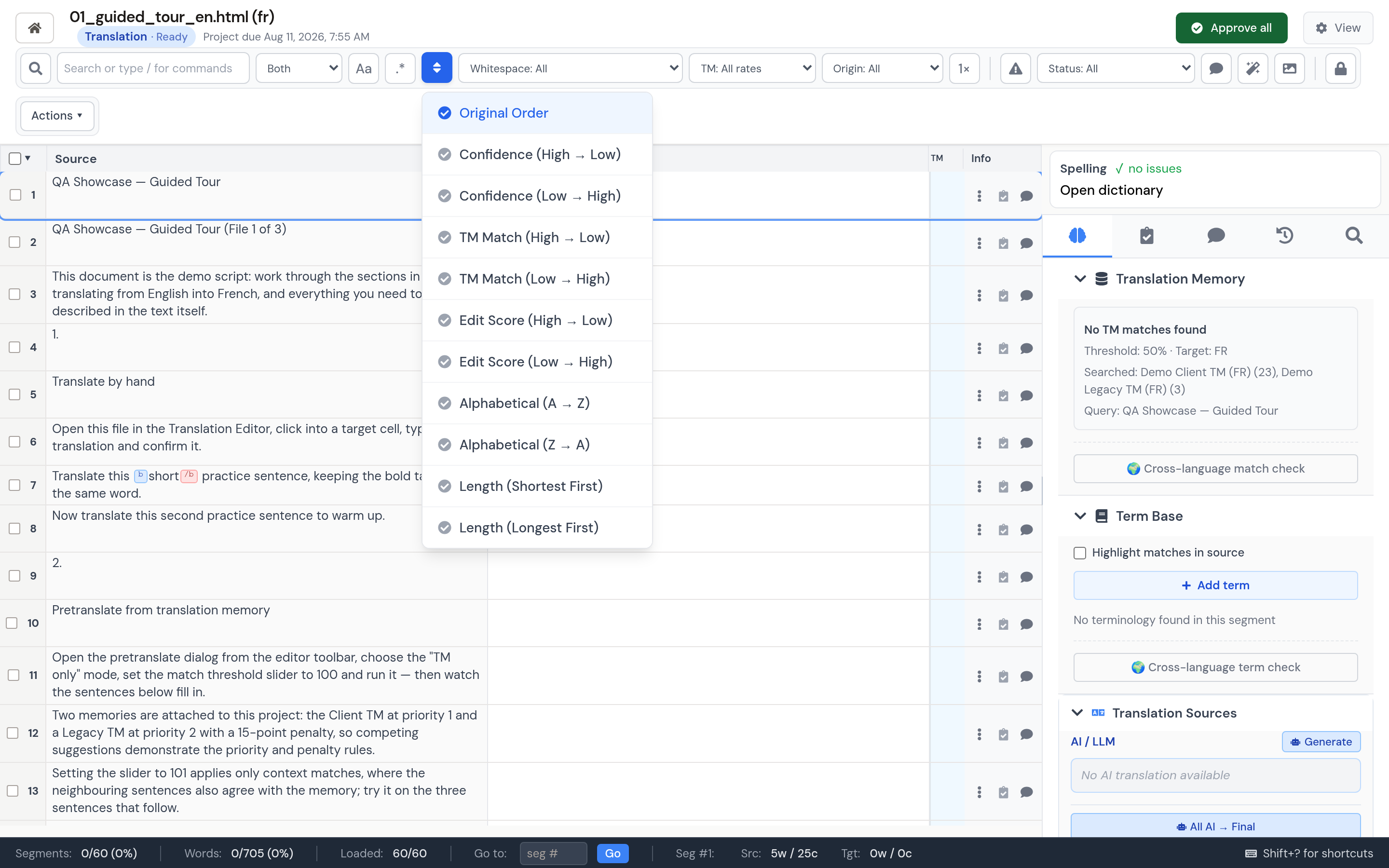
Sort by original document order, confidence, TM match, edit score, alphabetic order, or source length. TM-match sorting works across the full session rather than only the visible page.
The filter bar also supports:
- Approved or not approved status
- Translation origin: human, TM, or AI/MT
- A specific recorded translation memory
- TM bands: 100%+, 95 to 99%, 85 to 94%, or below 85%
- The first occurrence of each repetition
- Leading or trailing spaces, repeated spaces, tabs, line breaks, or non-breaking spaces
- Unresolved comments, screenshots, locks, review flags, and segments touched by an LQA fix
Clearing a filter restores the active segment where possible. The count beside metadata filters represents whole-session matches, not just rows currently loaded into memory.
Protected inline tags
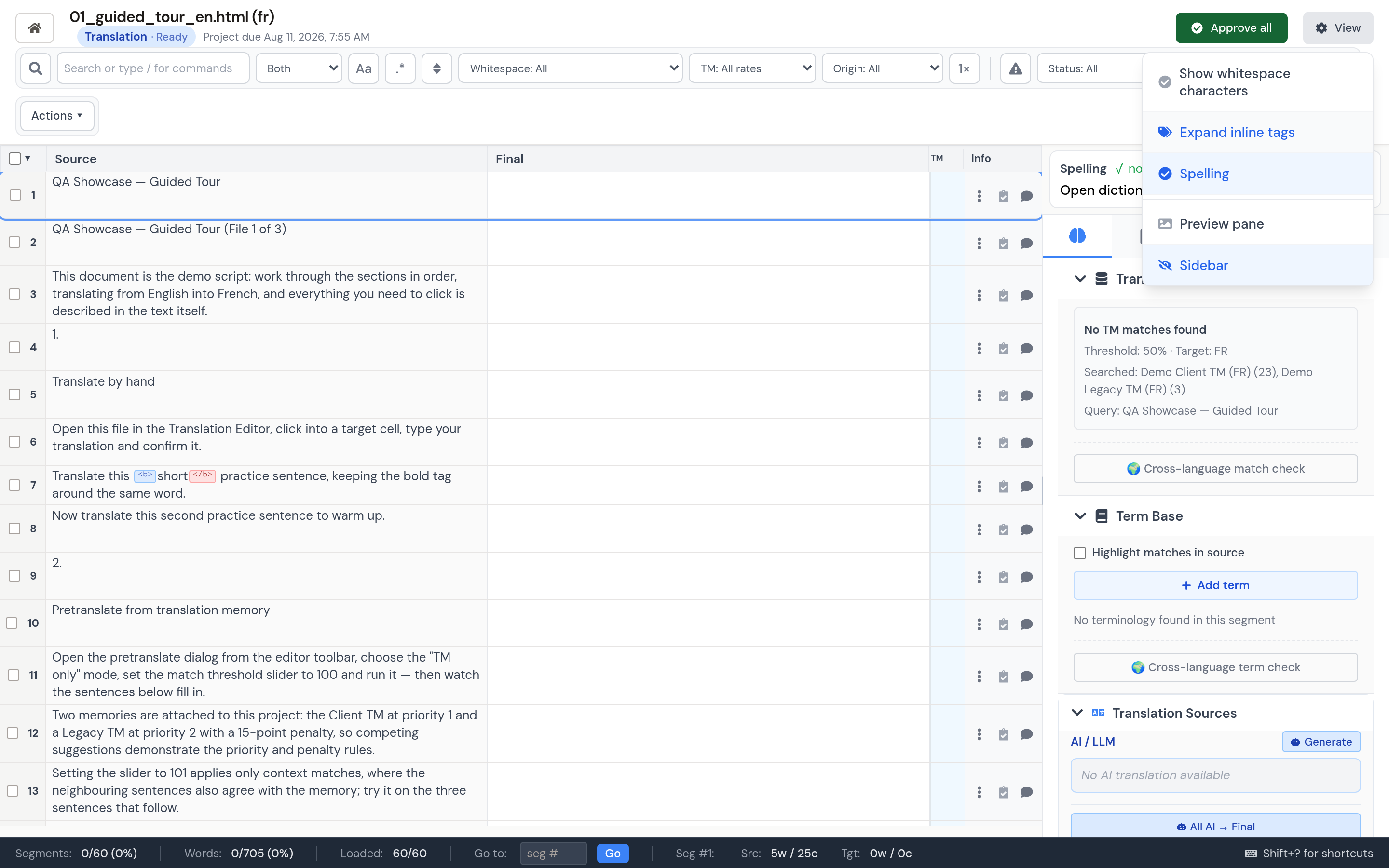
Tags are protected chips that preserve formatting, links, placeholders, and file structure. View > Expand inline tags shows their complete markup; compact mode keeps dense files easier to scan.
All assigned linguists can:
- Move an existing target tag by dragging it.
- Restore a missing source tag at the remembered target caret with Alt/Option+I.
- Insert an available source-tag chip by click, keyboard, or drag and drop.
If your PM has enabled Edit inline tags, you can also remove an adjacent chip with Backspace or Delete, or double-click a target chip and edit its validated raw markup. Without that permission, changing, deleting, replacing, or inventing protected markup is rejected on save, while moving existing tags and restoring exact missing source tags remain available.
Comments and revision history
Choose one of the six comment categories: General comment, Quality issue, Suggestion, Terminology question, Context needed, or Approval note. Replies stay in the thread, and participants, mentions, and the project team receive notifications according to their preferences.
Authors and workflow managers can edit or recategorise root comments. Resolve a thread when no action remains. The /comments filter means unresolved comments; amber indicators show outstanding discussion and green indicators show that all comments on the row are resolved.
Every saved change records its author, time, workflow stage, source, and relevant provenance. Use the History panel to compare previous values. Completed sessions retain this audit trail while preventing translation changes.
View controls
The View menu controls visible whitespace, expanded tags, spelling underlines, the document preview, and sidebar visibility. These are display preferences only and do not alter saved text.
Keyboard shortcuts
Open the in-editor reference with Shift+? or the keyboard icon.
| Area | Shortcut | Action |
|---|---|---|
| Navigation | ↑ / ↓ | Previous or next row when not editing |
| Navigation | Ctrl+↑ / Ctrl+↓ | Jump five rows |
| Navigation | Page Up / Page Down | Jump ten rows |
| Navigation | Home / End | First or last filtered row |
| Navigation | Alt/Option+J / K | Next or previous row |
| Editing | Enter or Alt/Option+Enter | Edit the active target |
| Editing | Esc | Leave the edit field |
| Editing | Ctrl+S | Save the current edit |
| Editing | Ctrl+Enter | Save and confirm |
| Editing | Ctrl+Shift+Enter | Unconfirm the current row |
| Selection | Space or Alt/Option+Space | Toggle the active row |
| Selection | Alt/Option+A or Ctrl+Shift+A | Select loaded rows |
| Selection | Alt/Option+D | Clear selection |
| Content | Ctrl+Shift+S | Copy source to the selected target scope |
| Content | Alt/Option+Y | Copy the AI candidate to target |
| Content | Alt/Option+1 to 9 | Apply the numbered TM result |
| Content | Alt/Option+Shift+1 to 9 | Apply the numbered TB result |
| Content | Alt/Option+I | Insert the next missing tag |
| Workflow | Alt/Option+L | Toggle a lock on the active or selected rows |
| Workflow | Alt/Option+Shift+A | Confirm selected rows |
| Workflow | Alt/Option+T | Translate the active row, when enabled |
| Workflow | Alt/Option+Shift+T | Translate selected rows, when enabled |
| Interface | Ctrl+B | Toggle the sidebar |
| Interface | Ctrl+F | Focus editor search |
| Interface | Ctrl+H or Option+Cmd+F | Open Find & Replace |
Browser and operating-system shortcuts can take precedence in some environments. Use the visible buttons when a local shortcut is reserved.