QA and LQA in the editor
LanguageOps keeps rule-based QA and LQA separate. They can be enabled independently for assigned linguists.
- QA runs deterministic checks for tags, numbers, whitespace, terminology, quotation structure, consistency, character limits, and other configured criteria.
- LQA uses a linguistic assessment to identify categorised issues and severity, with suggestions where available.
If your PM has enabled QA or LQA for the project, the matching action is available in the editor Actions menu. If only one is enabled, you can still view existing findings from the other system without rerunning it.
Running QA
Open Actions > QA to review the project's active QA checklist and run it across the required scope. Project managers control the project's QA profile. Assigned linguists can inspect the criteria but cannot silently replace the project configuration.
QA runs as a recoverable background job. You can close the dialog and continue working, follow progress in the editor, cancel an active job, and return after navigation or refresh. A new completed run replaces the previous current results for its scope.
Use /qa, /qa:fail, /qa:warning, or a specific command such as /qa:unpaired_quotes to focus a review pass.
Running LQA
Open Actions > LQA when your PM has enabled LQA for the project. Choose selected segments, unchecked segments, confirmed segments, or all segments as appropriate.
LQA uses bounded project guidance by default. This may include selected style-guide content, project glossary terms, and successfully extracted project reference material. You can opt out for an individual run when the review should assess the translation without that project guidance.
The LQA job records every requested segment. Partial provider errors are reported instead of silently reducing the review scope.
Navigating File Issues
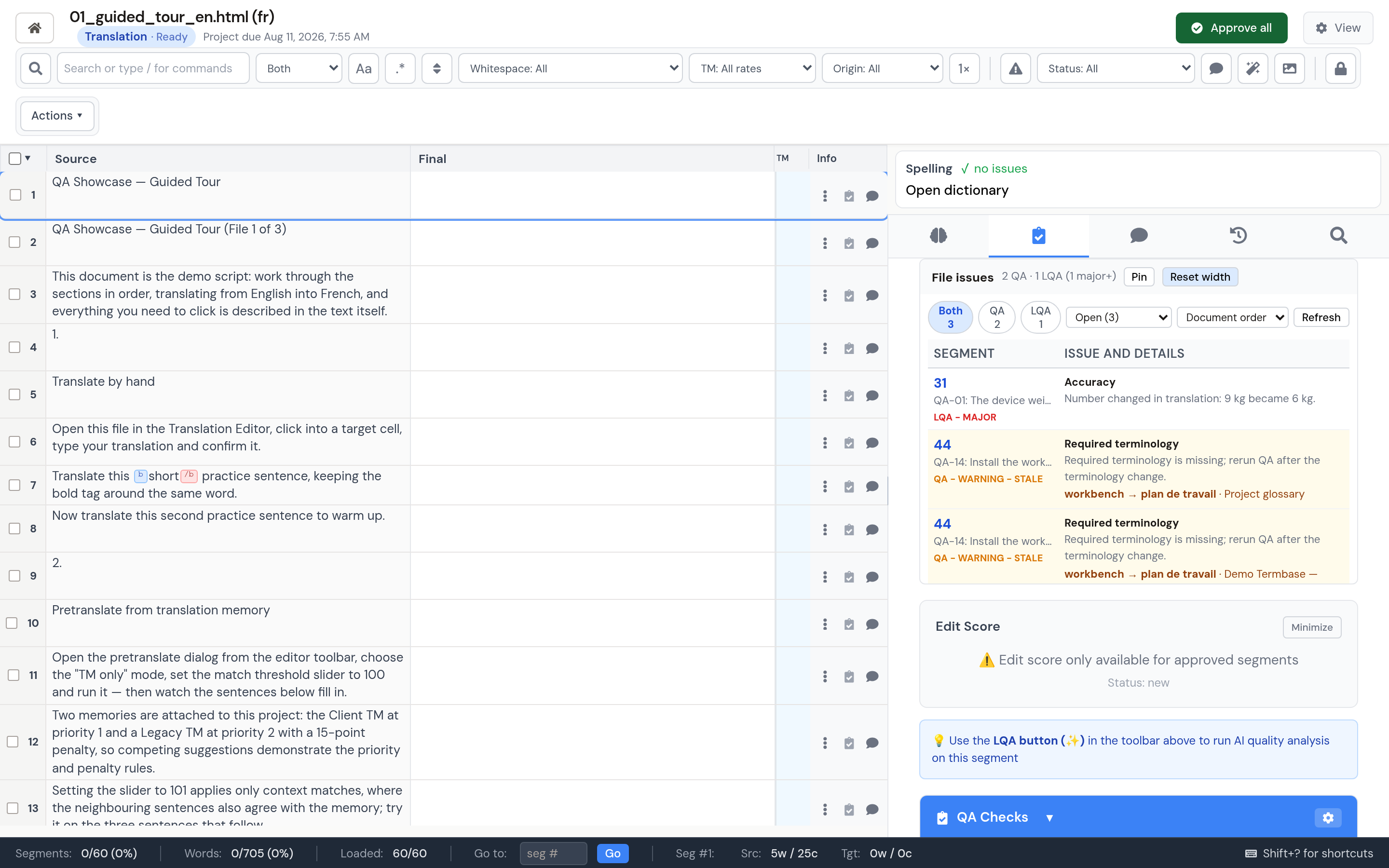
The File Issues sidebar is the whole-session review queue. It supports:
- Both, QA-only, or LQA-only scope
- Open, ignored, or all dispositions
- Document-order, issue-type, or severity sorting
- Continuous row numbers and source snippets across joined files
- Direct navigation to unloaded rows
- Required source-to-target terminology details
- Stale labels when a finding was produced against older text or settings
- Ignore and Restore actions with audit metadata
- Automatic loading of later issue pages as you scroll, with no 300-issue cap
Selecting an issue scrolls to the segment and keeps the current-segment details in sync. The panel refreshes after issue changes and completed QA, LQA, or fix jobs. Refresh remains available when another user changes the project externally.
Current, stale, ignored, and resolved findings
Editing a target can make its previous QA or LQA result stale. Stale findings remain visible for context, but they are not presented as a fresh assessment of the new text. Rerun the relevant check to replace them.
Ignoring a deterministic QA result records that the segment/check combination was intentionally accepted. It stays ignored across QA reruns, target edits, and QA-profile changes until you use Restore. The default Open view hides it; choose Ignored or All when you need to review accepted findings. LQA findings may also be resolved or marked OK, and those dispositions are included in exports.
Terminology issues
Required-terminology QA checks the project's glossary and readable attached termbases. File Issues shows the triggering source term and the required target form directly.
If the translation is wrong, correct the target. If the termbase entry is wrong, leave a comment for the PM or edit the entry when your PM has enabled termbase editing. A terminology change can trigger an impact scan and offer a targeted QA rerun for affected segments.
Fixing existing quality issues
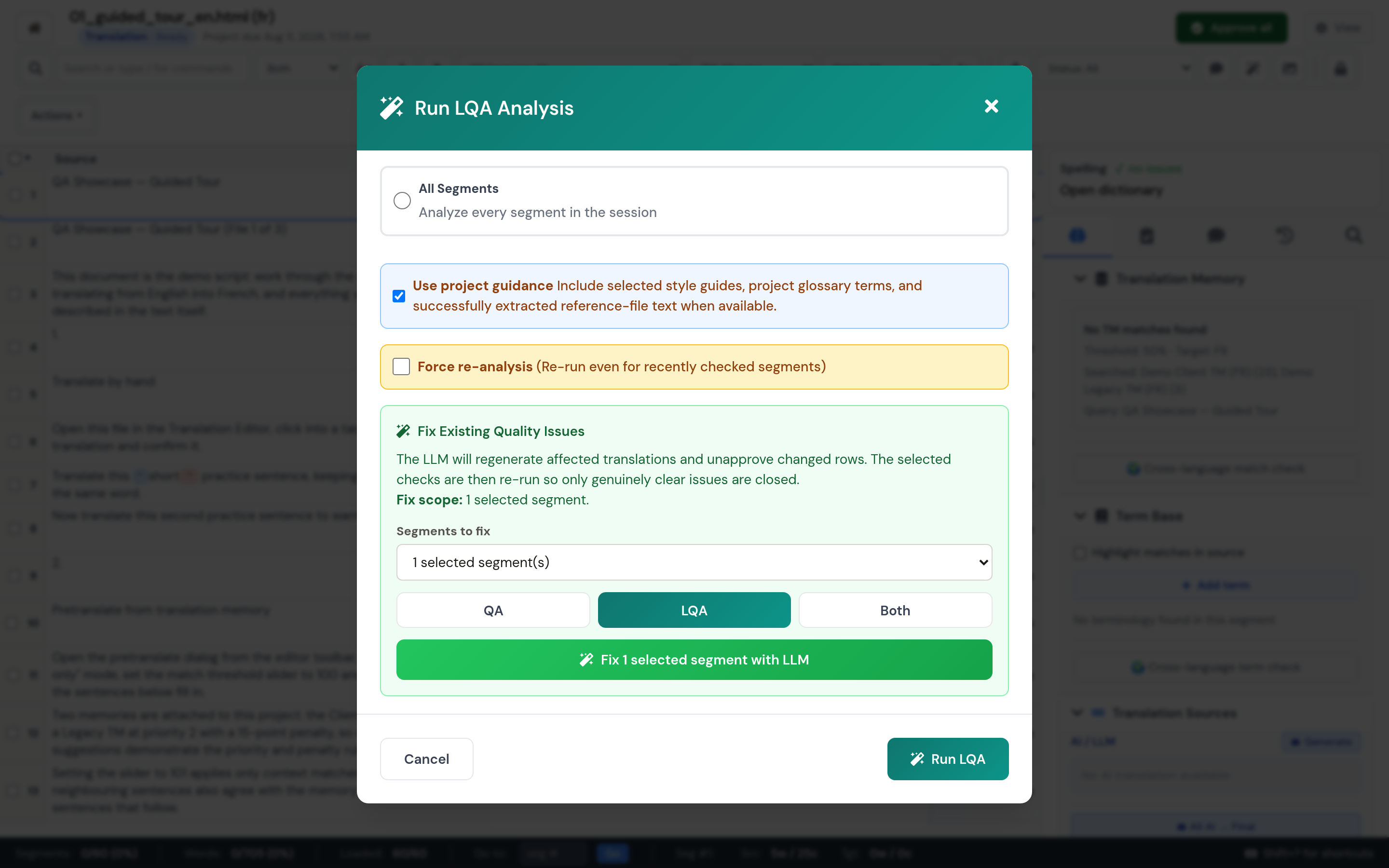
Fix Existing Quality Issues can work on QA, LQA, or both. It requires auto-translate/AI permission and permission for every issue system included in the selected scope.
Before starting, confirm whether the job should cover selected segments or all unresolved issues in the current file or joined files. The button label and job summary repeat that boundary so a visible issue total cannot accidentally imply a broader run.
The job:
- Freezes the requested worklist.
- Applies corrections to actionable, unlocked rows.
- Returns changed approved rows to Reviewed.
- Reruns deterministic QA and, when requested, LQA verification.
- Reports cleared, remaining, skipped, and failed rows.
A QA-only AI fix invalidates older LQA for a changed segment. Run fresh LQA before treating that segment as assessed. If LQA verification redetects an issue, the updated finding remains open and can be fixed again.
Completed sessions and rows locked against your role cannot be changed by the fixer.
How issues affect completion
QA and LQA are part of the project's delivery policy, not just visual warnings. Depending on the PM's settings, completion may warn or block when:
- Segments are empty or unconfirmed.
- Comments remain unresolved.
- Major or critical LQA findings remain open.
- A required QA run has not completed successfully.
Managers can override blocking guardrails, but the override is recorded in the project audit history. See Completing and exporting.
Exporting findings
The editor exports current QA and LQA issue lists as separate CSV files. QA exports include open and ignored checks. LQA exports include open, resolved, ignored, and marked-OK records, plus addressed state and disposition time. See Completing and exporting.