Working with large files
Very large files, the kind that make desktop CAT tools struggle, are handled with dedicated analysis and filtering tools rather than brute force. The platform checks file size and structure before processing and adapts how the file is loaded, split, and edited.
What happens when you upload a large file
A Large File Detected dialog shows the file size, word count, estimated segments, and estimated browser memory, then recommends how to proceed:
- Load with optimized settings (recommended): progressive loading and reduced per-segment data.
- Continue with standard settings: if you know the file is manageable.
Example: a large JSON localisation file
JSON exports are a common case. A product's full string catalogue may be in one file even though only some keys require translation. Two tools keep it workable:
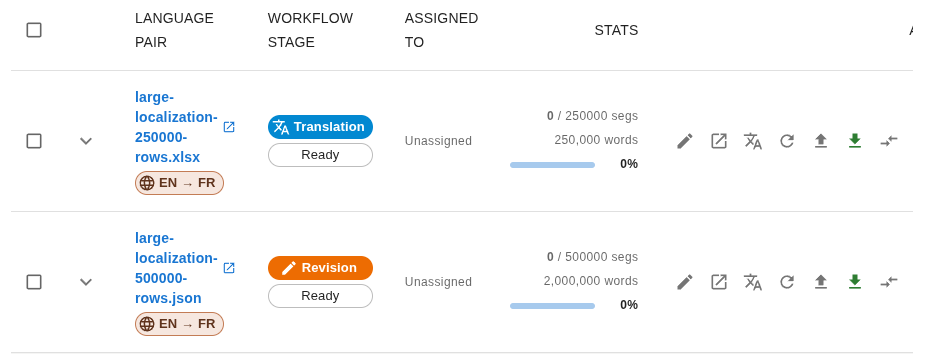
This real project view shows a 250,000-segment Excel workbook and a 500,000-segment JSON file ready in their respective workflow stages:
- Key filtering: discover unique keys, build include/exclude rules and wildcard patterns, and preview the resulting word and segment counts before committing. For example, include
*.titleand*.descriptionwhile excluding*.id. - Splitting: break a huge JSON into smaller files that are processed in parallel and can be distributed across linguists.
For Word, Excel, and PowerPoint, the equivalent is selective extraction: restrict extraction to specific styles, columns, rows, or slide elements.
In the editor
Large files stay responsive: only visible rows are rendered, segments load progressively as you scroll, and memory is cleaned up automatically on long sessions. Turbo mode skips loading QA data for maximum speed on the largest files.