Projects and files
Creating a project
Project creation is a four-step wizard: Project Info > Upload Files > Configure Processing > Processing.
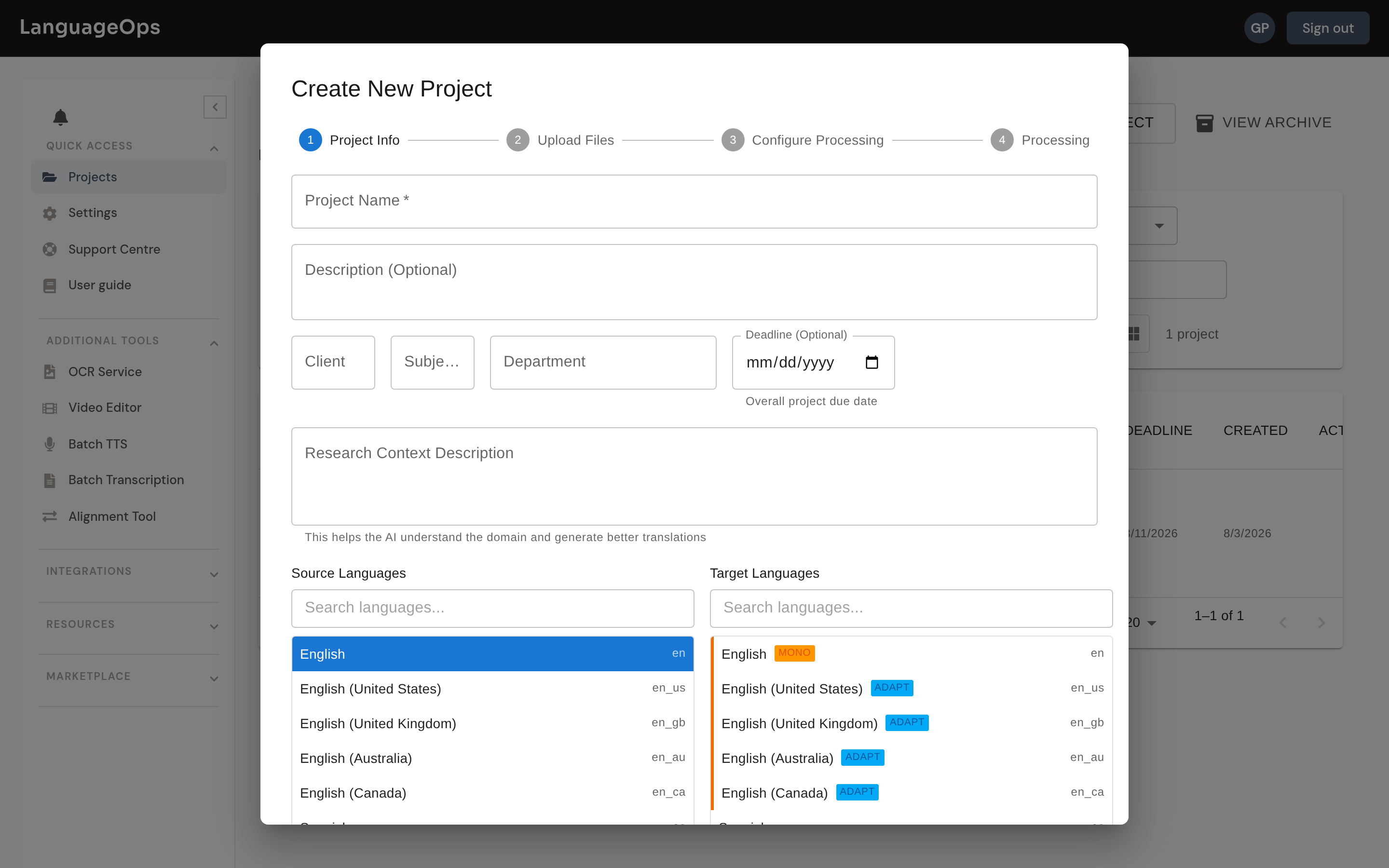
Step 1: Project Info
- Project Name and an optional Description.
- Client Name, Client Industry, and Department: organisational fields that can also provide project context.
- Source Languages and Target Languages: searchable language lists. Selecting the same language on both sides switches to monolingual work, including variants such as en-US to en-GB.
- Workflow Type: how much of Translation, Revision, and Proofreading runs automatically. See Workflow stages. , Manual (default): a human drives each stage. , Automatic End-to-End: Translation and Revision run automatically; Proofreading remains manual. , Auto Translation Only: Translation runs automatically and hands off to human Revision.
- Style Guides: optional guidance for target-language conventions.
- Research Context Description: optional content, audience, or client context.
Step 2: Upload Files
Add the files to translate. XLIFF, Word, Excel, PowerPoint, PDF, HTML, XML, JSON, CSV, PO, SRT, VTT, YAML, Markdown, IDML, MIF, properties, RESX, SCORM, and 60+ more formats are supported. Very large files trigger the analysis flow described in Large files.
Step 3: Configure Processing
The platform detects a Processing Method per file, which you can override:
- Standard Conversion: normal extraction of translatable text into segments.
- OCR Processing: for scanned PDFs and images, with provider, prompt, and output-format choices where available.
- Format-specific options such as Extraction Instructions for unusual file structures.
Step 4: Processing
Files convert in the background; progress is shown per file. Once done, files are ready for analysis and translation.
File analysis
Run File Analysis to get a CAT-style breakdown before translating. It reports perfect matches, source matches, repetitions, 101/context matches, non-translatable content, leveraged content, and new content. Use Detect Cross-File Repetitions when a batch shares content. Analysis history supports comparison, naming, and export without rerunning.
This is the basis for quoting: only new and fuzzy content costs full effort.
Counting is script-aware. Chinese, Japanese, Korean, and relevant Southeast Asian languages use characters instead of space-separated words.
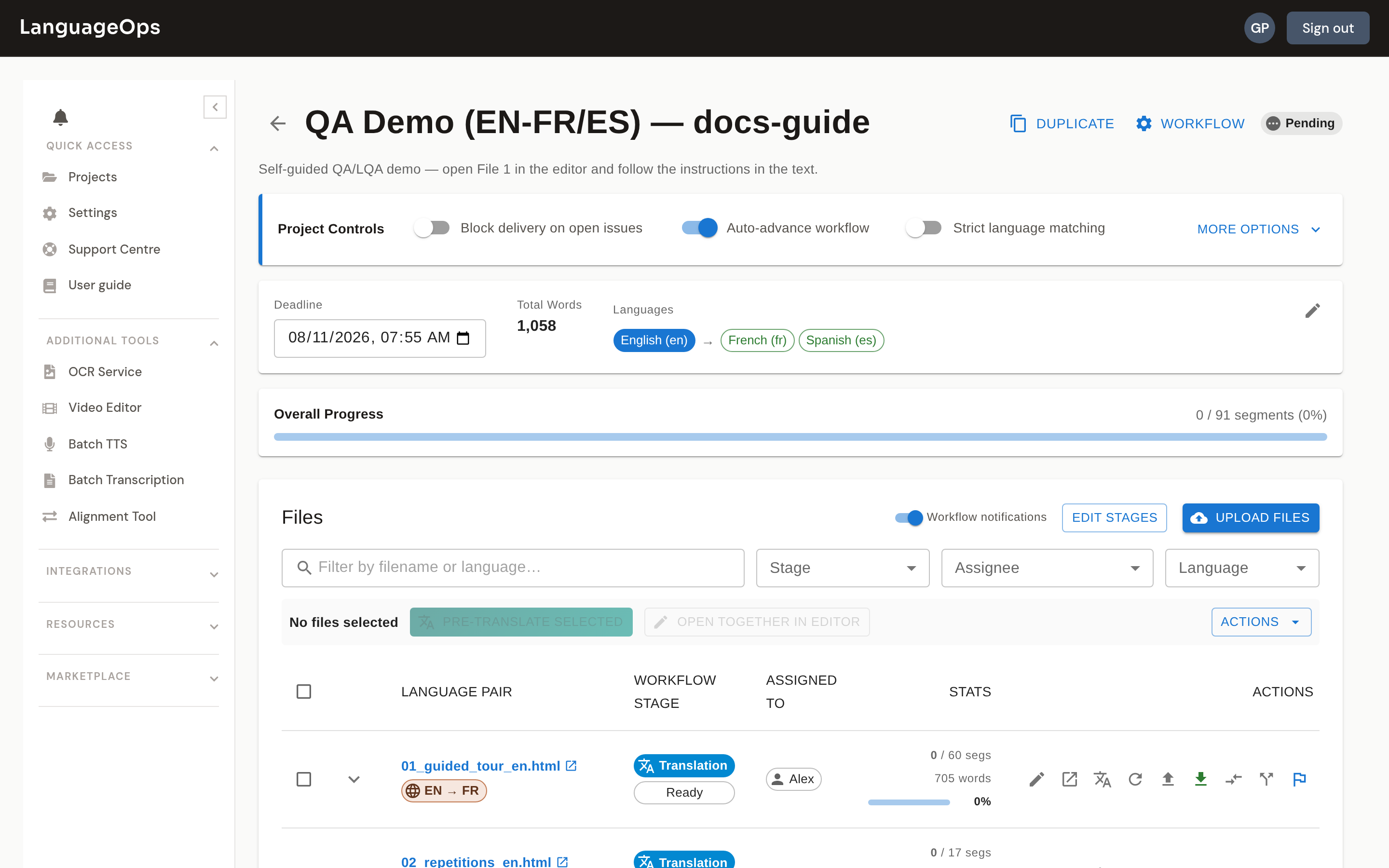
The project page
The project detail page is the working hub:
- Files: status, workflow stage, assignment, language pair, editor actions, source updates, and delivery actions.
- Stats: progress, words, segment counts, analysis, and effort indicators.
- Workflow: stage configuration, assignments, deadlines, notifications, progression, and stage TM behavior.
- Translation Memory / Term base: attached resources, thresholds, and AI-translation use.
- Project Controls: independent linguist permissions, delivery guardrails, workflow advancement, and language matching.
- Selected file actions: joined editor sessions, new-tab review, pre-translation, and selected XLIFF ZIP export.
- Audit History: assignments, workflow transitions, completion, overrides, and manager actions.
Assigned linguists see only files available to them in the active workflow stage. Managers see every project file. See Workflow stages and assignments for permission and completion behavior.
Deleting and restoring files
Deleting a file moves it to the Recycle Bin rather than destroying it. Restore it from there if the deletion was a mistake.