Running translation
The pre-translate dialog
Select one or more compatible project files and choose Pre-translate. The project dialog provides:
- AI translation or TM only (no AI) mode.
- A 50% to 101% TM threshold in TM-only mode.
- Optional locking and confirmation of qualifying TM matches as part of PM file preparation.
- TM matches, TB terms, cross-language matches, and available project research as AI context.
- Empty segments only, Overwrite drafts, or Overwrite all handling.
- Optional post-edit behavior that gives the AI the existing target as a draft when overwriting.
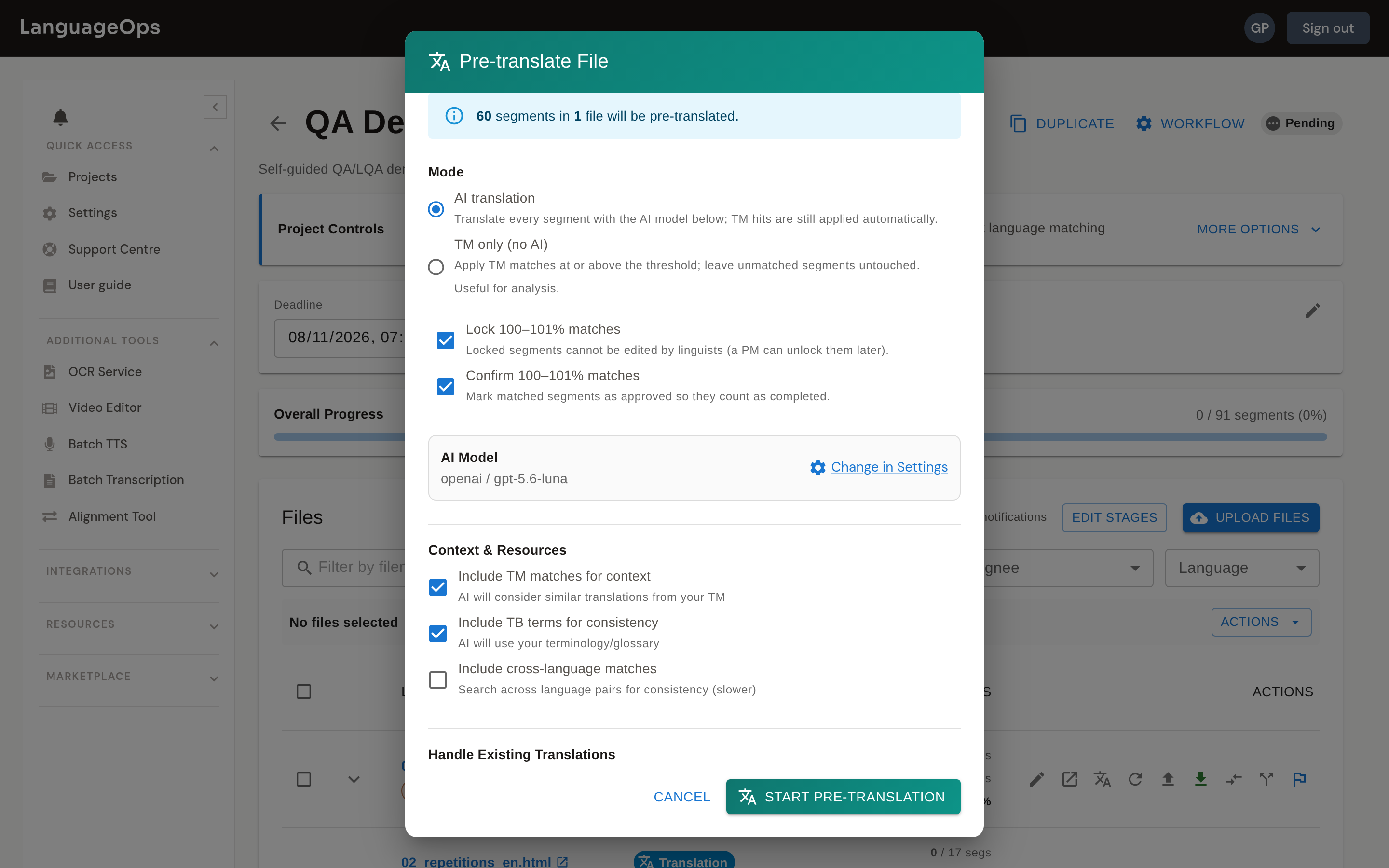
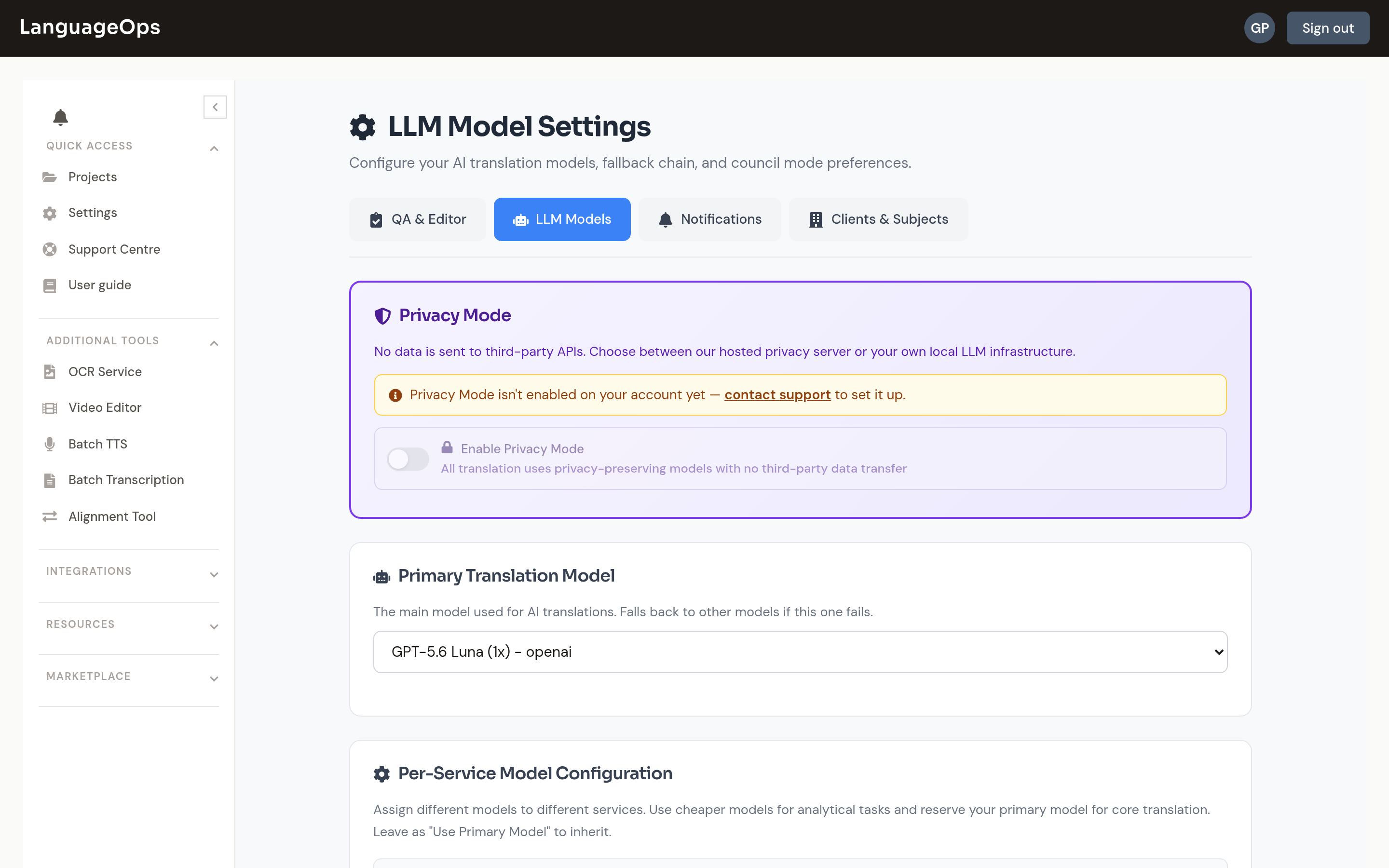
The dialog shows the primary account model configured under Settings > LLM Model Settings. Change the account setting there. Editor translation can also use a per-file model override without changing the organisation default.
Only workflow managers can use the project-page lock and confirm controls. Assigned linguists receive editor auto-translate only when Project Controls > Auto-translate is enabled for them.
Depending on the project's workflow type, translation may start automatically when processing finishes.
Choosing a model
AI translation uses the account's configured provider and model, or an allowed per-file override. Models follow project instructions and can use TM/TB and research context. For content that should not reach a model, use TM only (no AI).
If a provider fails mid-run, the platform retries and can fall back to an alternative model rather than failing the job.
Privacy Mode
For content that must not go to external AI providers, enable Privacy Mode in Settings > LLM Model Settings, with two Privacy Sources:
- Platform: a hosted private model configured by LanguageOps.
- Local: your organisation's compatible model server.
While Privacy Mode is active, a banner reminds everyone that translation is running through the private route.
Model settings
The same settings page also controls:
- Primary model and fallback models: provider order when the primary route fails.
- Council Mode: multiple models translate and deliberate for selected high-stakes content.
- Track Model Usage in History: record the model that produced a translation.
What happens automatically
Before any AI sees your content:
- Exact TM matches are pre-applied: qualifying rows do not consume AI translation tokens.
- Repetitions are handled once: repeated source content can be translated once and propagated.
During the AI run:
- Termbase terms can guide terminology.
- Fuzzy TM matches can provide reference translations.
- Project guidance can provide selected research, style, and client context.
Translation modes
When starting a run from the editor, choose a Translation mode:
- Faithful translation: accurate and close to source.
- Creative / transcreation: freer adaptation for marketing and brand copy.
- Dialect / regional variant: a specified regional variety.
- Monolingual polish: rewrite existing same-language text.
- Amend existing translation: revise current targets using a supplied instruction.
- TM only (no AI): apply qualifying memory matches and leave unmatched rows untouched.
An authorised user can override the model for this file without changing account defaults.
Document mode
For content where segment-by-segment translation loses context, toggle Document mode for a whole-document pass. It supports faithful, creative, monolingual, amendment, and dialect variants, plus optional candidate-term extraction.
Prompt rules
Projects can carry named Custom Instructions templates, such as rules about product names or formality. They are applied consistently to project AI runs.
Re-translating
You can rerun translation on selected segments, for example after a termbase change. Empty segments only preserves existing targets, Overwrite drafts preserves approved work, and Overwrite all deliberately includes approved targets.
Segments covered by an active translation job are read-only until the job finishes or is cancelled. This prevents a background result from overwriting a simultaneous manual edit. Completed sessions must be unmarked before translation can run.
Monitoring progress
Active jobs appear in a banner with live progress. Two details can make the displayed totals differ from the file total:
- TM-prefilled and repetition rows can be excluded from the AI batch count.
- Large runs are batched by word volume, so a batch may contain many short rows or a few large ones.
Expand the banner for per-stream progress. Project-page pre-translation is durable across refresh and navigation. When the run finishes, LanguageOps sends an in-app notification and an email when that preference is enabled.