Video translation and dubbing
Video projects take a video or audio file through transcription, subtitle translation, and optional AI dubbing inside the Video Editor.
The pipeline
-
Transcribe: start from the Transcribe page and configure options such as speaker separation, background separation, and subtitle limits. Speech-to-text uses word-level timestamps and can detect the source language.
-
Translate: use Start Translation for the subtitle segments. Reruns can include existing translations, and you can import SRT subtitles instead of transcribing.
For full review workflows, use Send to Translation Editor (in the translate dialog): the subtitles, or dubbing lines, depending on the selected mode, open as a session in the main translation editor, with complete TM/TB leverage, comments, locking, and team collaboration. Run pre-translation here first for subtitle/dubbing context-aware pre-processing, then refine in the editor. Timestamps are preserved via SRT round-tripping. When review is done, Pull Translations from Editor applies the edited text to the video.
-
Edit subtitles: the Subtitles tab lists segments synced to the player and timeline. Edit text and timings, split at the playhead, or join with the next segment.
-
Dub: generate voice-over from translated segments in the Dubbing tab.
-
Export: deliver the dubbed video, audio only, or subtitle files.
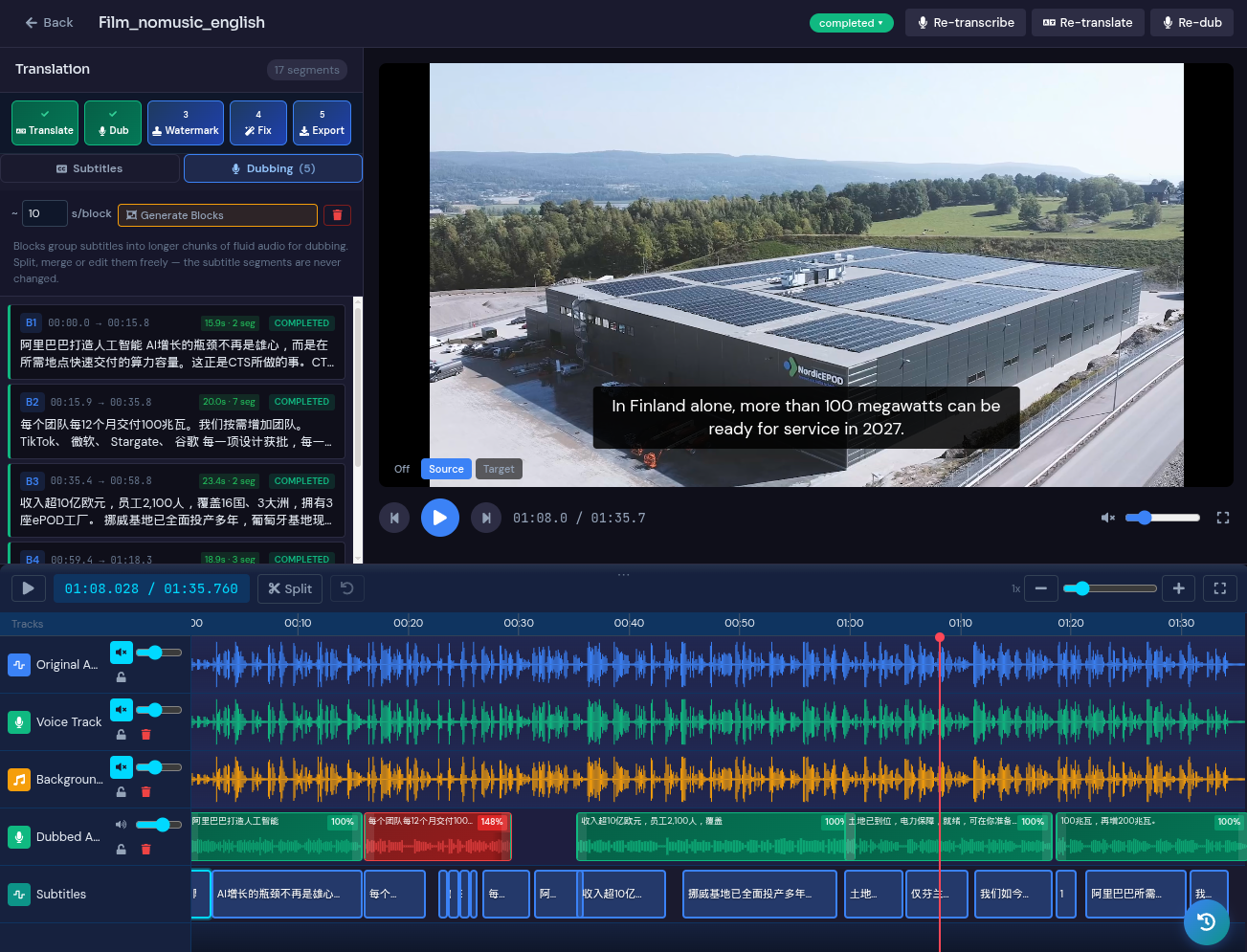
Dubbing
Dubbing uses blocks, which group subtitle segments into one continuous utterance:
- Dub all segments generates audio for everything; you can also dub or re-dub individual segments and blocks.
- Regenerate to fit: when translated speech runs longer than the original slot, regenerate with a target pacing (e.g. much shorter (0.7x) or same length (1.0x)) so the dub stays in sync.
- Speakers and voices: assign a voice per speaker, reassign speakers where diarisation got it wrong, and clone voices for a closer match to the original.
- Pronunciation glossary: control how product names, people, and brand terms are spoken before generating voice-over.
- Filler-word muting: analyse the original audio for filler words and mute them.
- The original audio track is always preserved alongside generated tracks.
Blocks can be split, merged, or cleared and rebuilt without losing the underlying subtitle segments.
Timeline editing
The timeline shows subtitle and dubbing blocks against the audio. Drag to move or resize to retime. Blocks snap to neighbouring boundaries and the playhead.
PMs typically run transcription, translation, and dubbing; linguists work in the Subtitles tab refining text and timings like any other editor session.